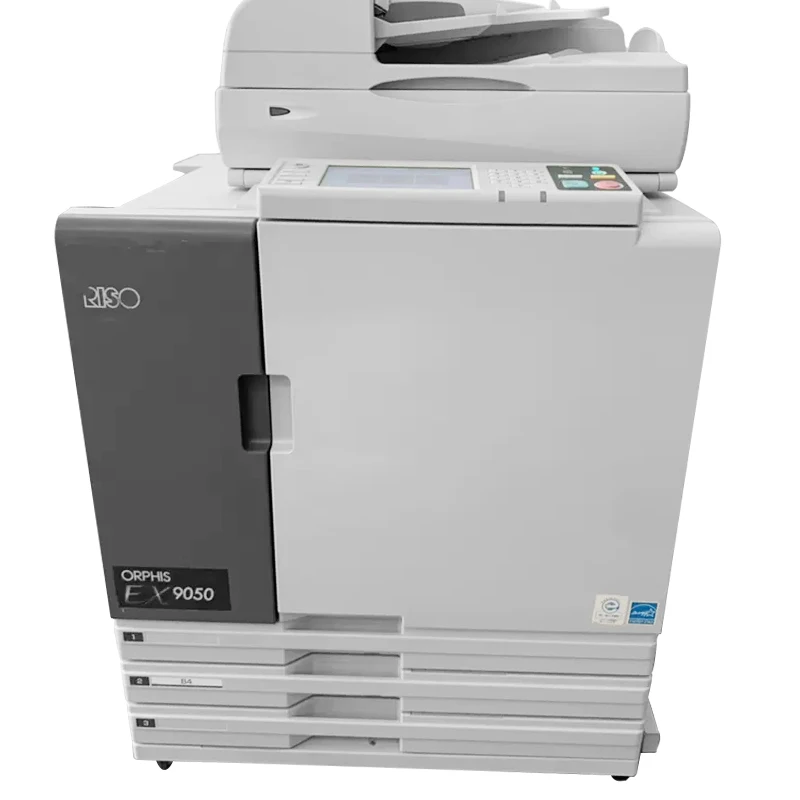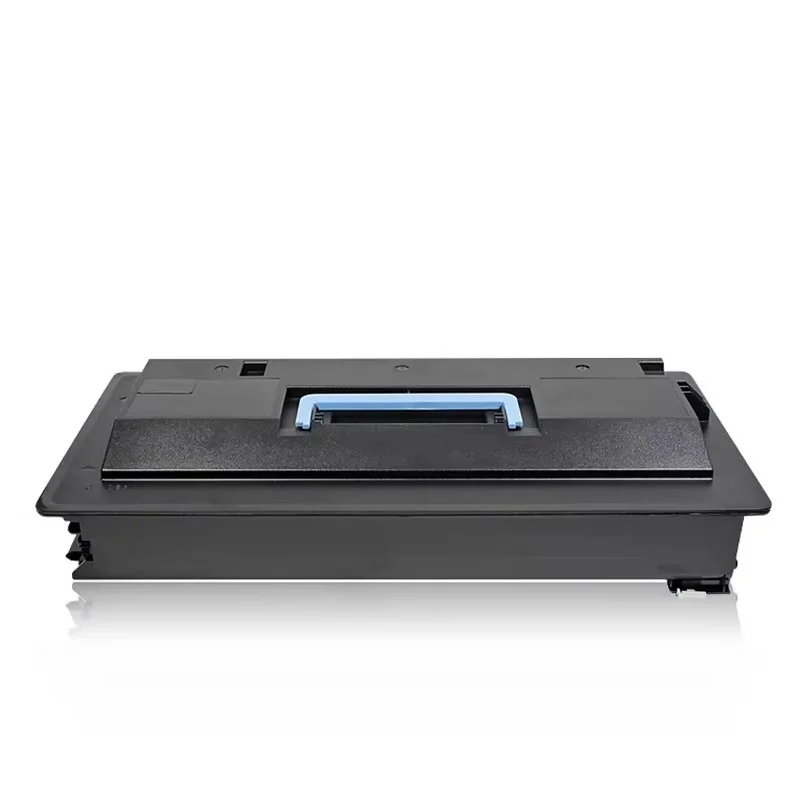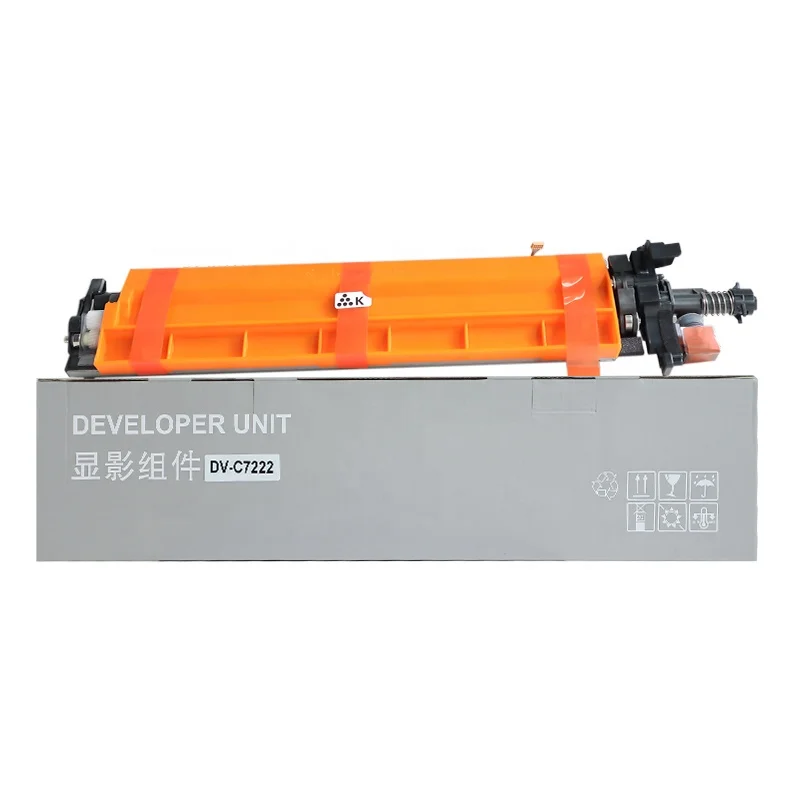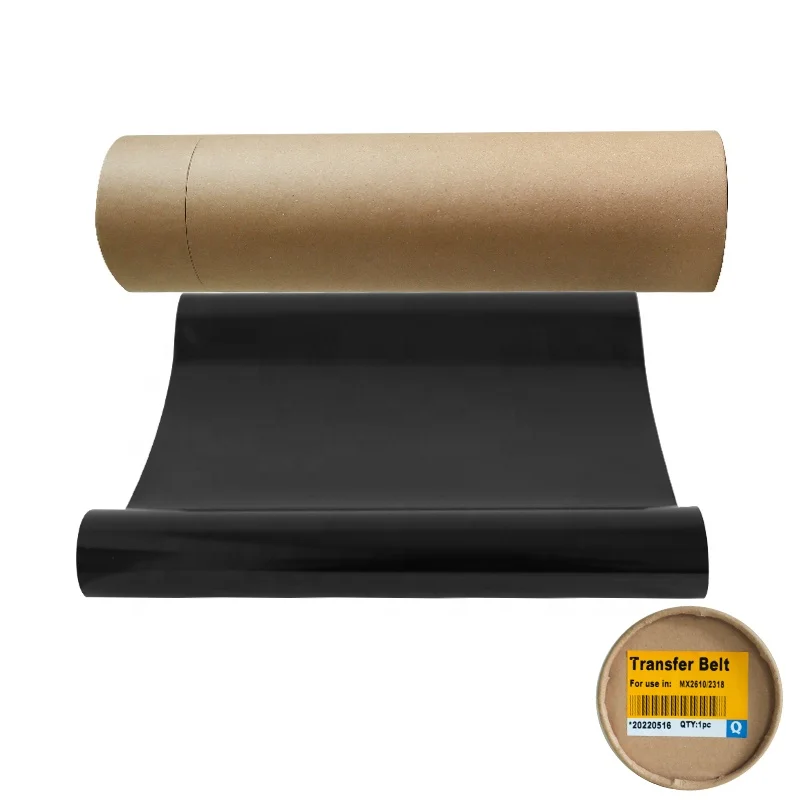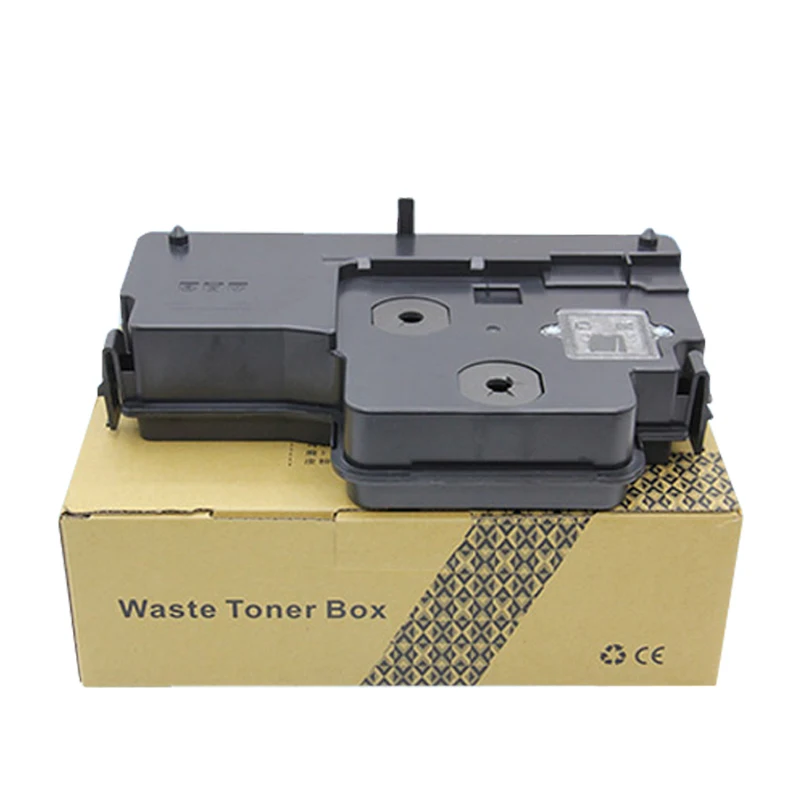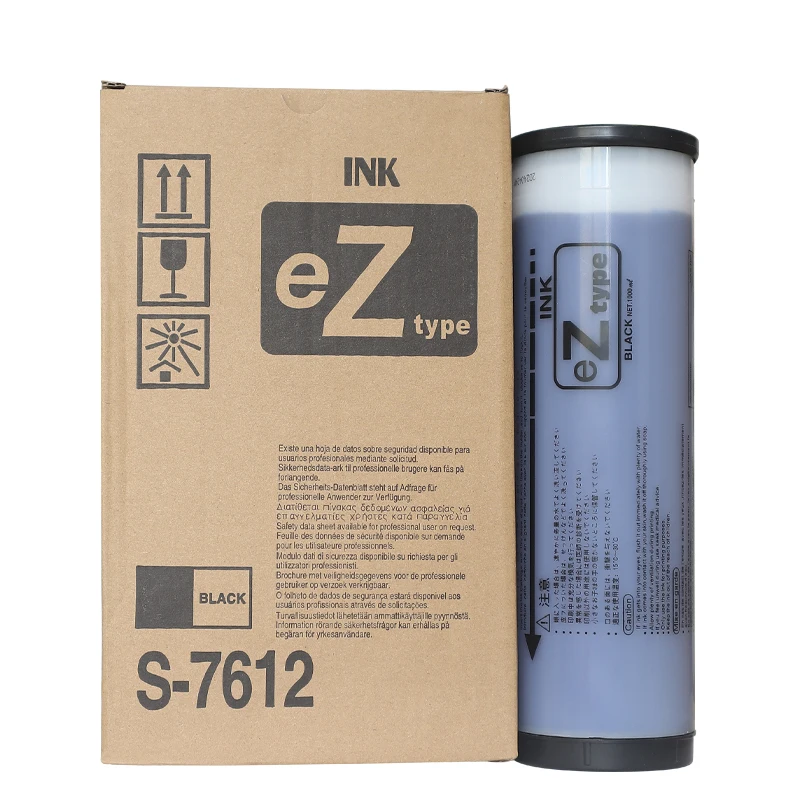
The causes and remedies for Light Printing, Low Density, and TCR Errors are discussed in the following contexts.
Some users encounter issues such as light printing, uneven color density, faded images, or toner cartridge errors when attempting to replace a copier with Xperia LaserJet Pro. The Konica Minolta C184, C195, and C205 series of cameras are frequently prone to these types of issues. What are they?
Even though the toner cartridge appears perfect when used correctly, printing performance can be affected by a variety of factors including tonnage adjustment (including manual or automatic adjustments for high tones), developer condition, chip compatibility, and installation details.
It provides details of the most common causes, as well as practical solutions to help users restore stable print quality.
1. When the toner is replaced, there is a low tonner density adjustment.
The copier has not adjusted the toner concentration required for faded prints, which is a common issue after replacing the original tonner cartridge.
Toner concentration on the copier is monitored by the TCR system during operation. How does this work? In case the toner density value is low, the machine may need more supplies. The following scenarios could occur:
 Light text printing.
Weak image density.
Uneven color output.
Poor solid area coverage.
Recommendation: Users can adjust the toner density by switching their printer to copier service mode after replacing their torn cartridge.
Typical adjustment steps:Enter Service Mode.
Select: Function → TCR Auto Adjust.
Ensure that the adaptation is completed before continuing.Printed out test pages to ensure the quality of output.
Depending on the machine's state, additional adjustments may be necessary to adjust the toner density value when printing remains excessively light.
2. The aging of the developer unit may impact the toner density.
The transfer of toner onto the drum surface is facilitated by the developer unit. As the years go by, the carrier material within the developer may deteriorate, which can hinder its ability to charge and transport toner.
Signs of a decaying developer unit include:.
 Despite the use of a new toner cartridge, printing is still light and unwieldy.
Uneven density across pages.
Background issues.
Frequent toner concentration errors.
Solution:The developer unit may need to be replaced or checked if the toner adjustment doesn't enhance print quality.
Regular maintenance of the developer unit is essential for maintaining:.
✔ Stable toner charging.
✔ Consistent print density.
✔ Longer copier service life.
3. Problem with Developer Chip or Toner Cartridge chip compatibility.
Modern copier consumables use chips to communicate with the machine. The presence of an incompatible or defective chip can result in incorrect toner detection or abnormal tonnage supply.
The toner cartridge is not recognized by the copier. What does this mean?
✔ Toner level display is incorrect.
✔ Print density becomes unstable.
✔ Error codes appear after installation.
Solution: Ensuring that the replacement toner cartridge uses a high-quality compatible chip specific to this printer.
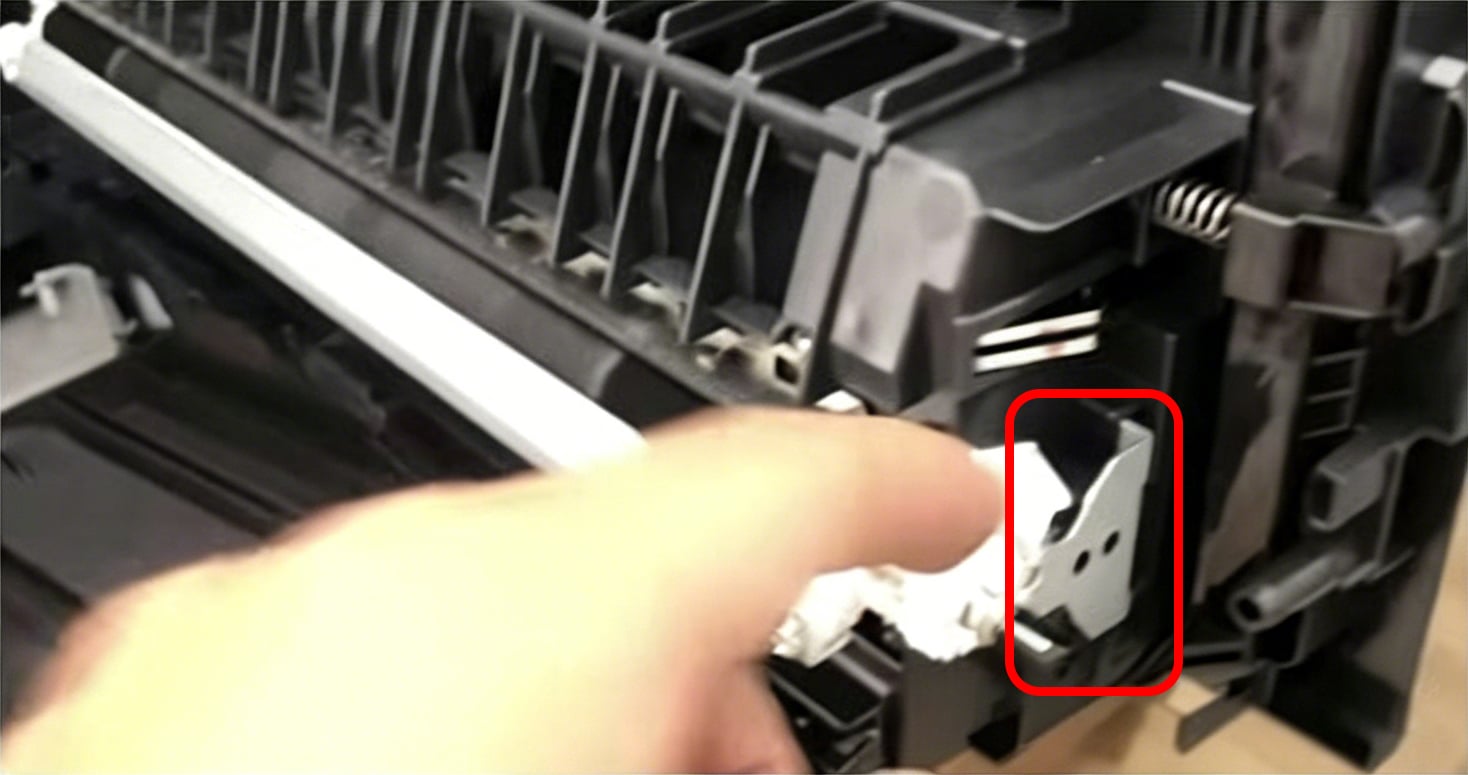
4. Components caused by incorrect toner cartridge installation are fixed.
The reason for printing issues is sometimes due to incorrect installation, not toner quality.Certain toner replacement procedures require the removal or proper positioning of certain fixing clips or locking parts. Left unassisted, these parts will cause the toner cartridge to not fit inside of this copier.
This can result in:
Abnormal toner supply.
Uneven printing.
Cartridge positioning problems.
Solution:
Before installation:
Check all protective parts.
Remove transportation locks.
Make certain that the cartridge has been inserted into the hole entirely.
Check for proper positioning of components when repairing them.
A proper installation will ensure toner delivery is smooth and the machine runs smoothly.
5. Faded printing can be caused by a dirty laser unit.
An electrostatic image of this drum, is created by the laser unit. The presence of dust or toner inside the laser assembly can lead to a decrease in image quality.
Common symptoms:
Light areas on printed pages.
Missing image details.
Uneven printing density.
Follow the laser unit's maintenance instructions and clean it thoroughly. This is recommended.
6. If the quality of Toner is poor, Printing may be affected.
Not all compatible toner cartridges work the same.. Poor charging characteristics or particle consistency in low-quality toner powder can result in:
✔ Light printing.
✔ Poor fusion.
✔ Background contamination.
✔ Short cartridge life.
Solution:
Use toner cartridges that are compatible with:
✔ Stable toner formula.
✔ High-quality components.
✔ Strict quality inspection.
✔ Print testing before shipment.
Having a trustworthy consumable supplier can significantly mitigate printing issues and maintenance expenses.
 Hot News
2026-08-19
2026-08-12
2026-07-30
2026-07-24
2026-07-21
2026-07-11
Guangzhou SC Office Equipment Co., Ltd specializes in high-quality, Japan-compatible copier and printer consumables since 2009. Discover reliable toner cartridges and imaging solutions.
Building H, Yushu Innovation Park, Science City, Huangpu District, Guangzhou, Guangdong, China
Copyright © 2026 Guangzhou Xinshengchu Office Equipment Co., Ltd. All right Privacy Policy
 EN
EN